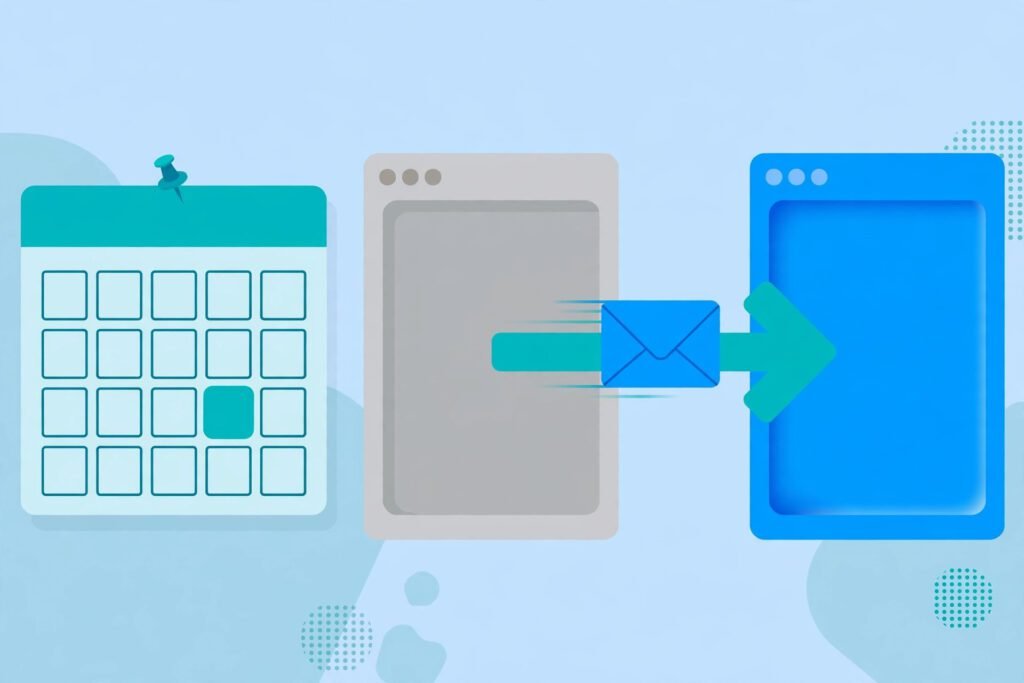
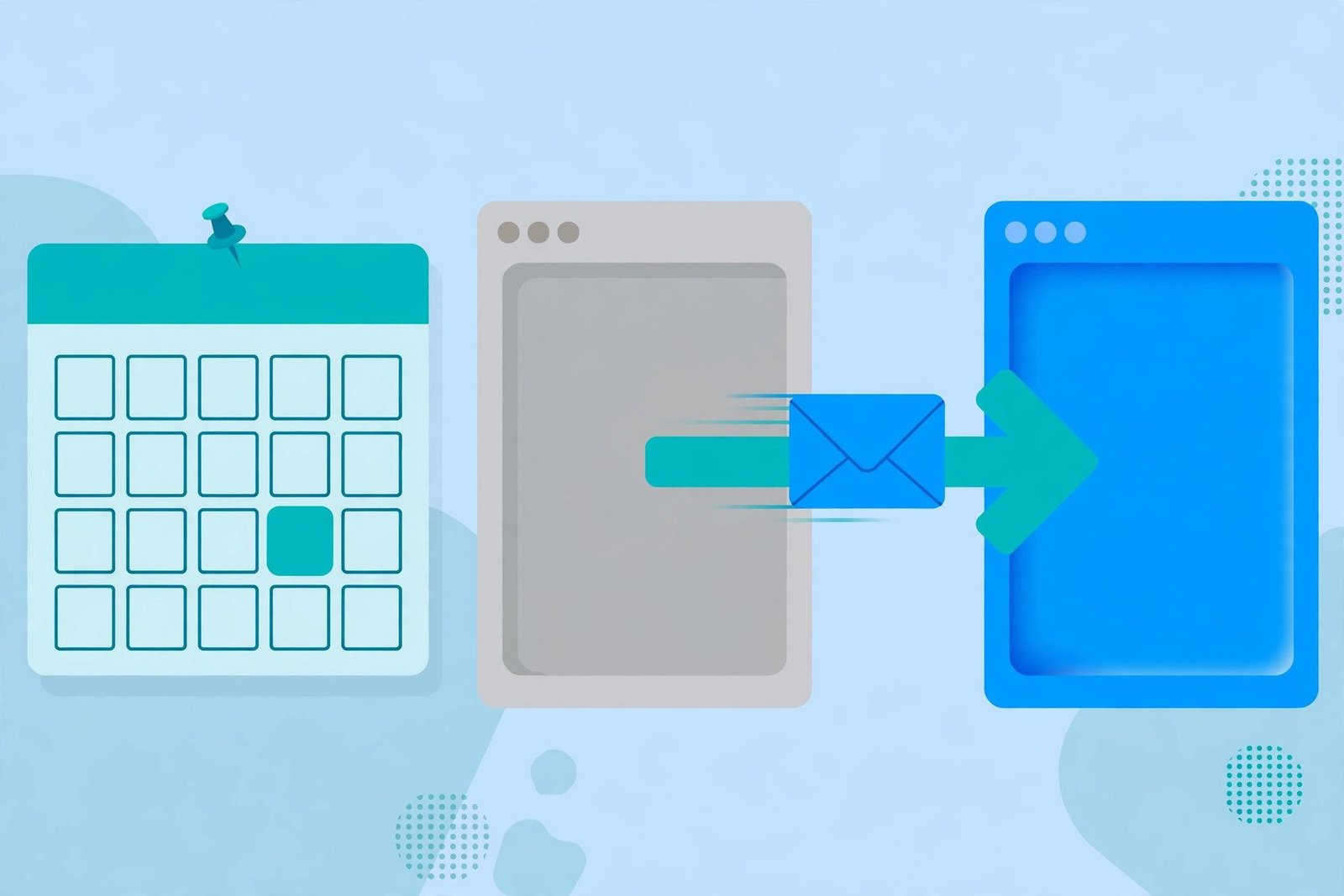
On Wednesday, October 28, 2026, every Act-On account moves to the new Outbound Email experience, and the legacy email composer stops being the place where new work starts. Act-On has confirmed the date in an official help center announcement about the Act-On email composer migration, and the change applies to all accounts at the same time. There is no gradual rollout left to wait for, and there is no option to switch back once the date passes.
For marketing teams that live inside Act-On every day, the deadline matters for a practical reason. The templates, drafts, and sending habits built up in the legacy composer do not carry over in a neat automatic package. Act-On states clearly in the Email Composer FAQs that no conversion tool is planned, so legacy emails and templates need to be manually re-created in the new Email Composer. A team with forty active templates and a busy campaign calendar cannot rebuild everything in the final week. The teams that treat the next few days as a preparation window will log in on October 28 and keep sending. The teams that ignore the deadline will spend the end of October rebuilding core assets under pressure.
This guide explains the Act-On email composer migration in plain terms. It covers what changes on October 28, what goes away in the legacy composer, what stays the same, and how to prepare before the deadline with a step by step plan. It also covers what happens if a team misses the deadline, based only on what Act-On itself has published in the official announcement and the official Email Composer FAQs.
What Is Changing on October 28
The headline change is consolidation. In the new Outbound Email experience, draft, scheduled, awaiting approval, failed, and sent messages live together in one place, under Email > Outbound Messages > Standard Messages. The same folders, tags, and favorites work across all of them. A marketer no longer jumps between separate classic listing pages to find a message at a different stage of the sending process.
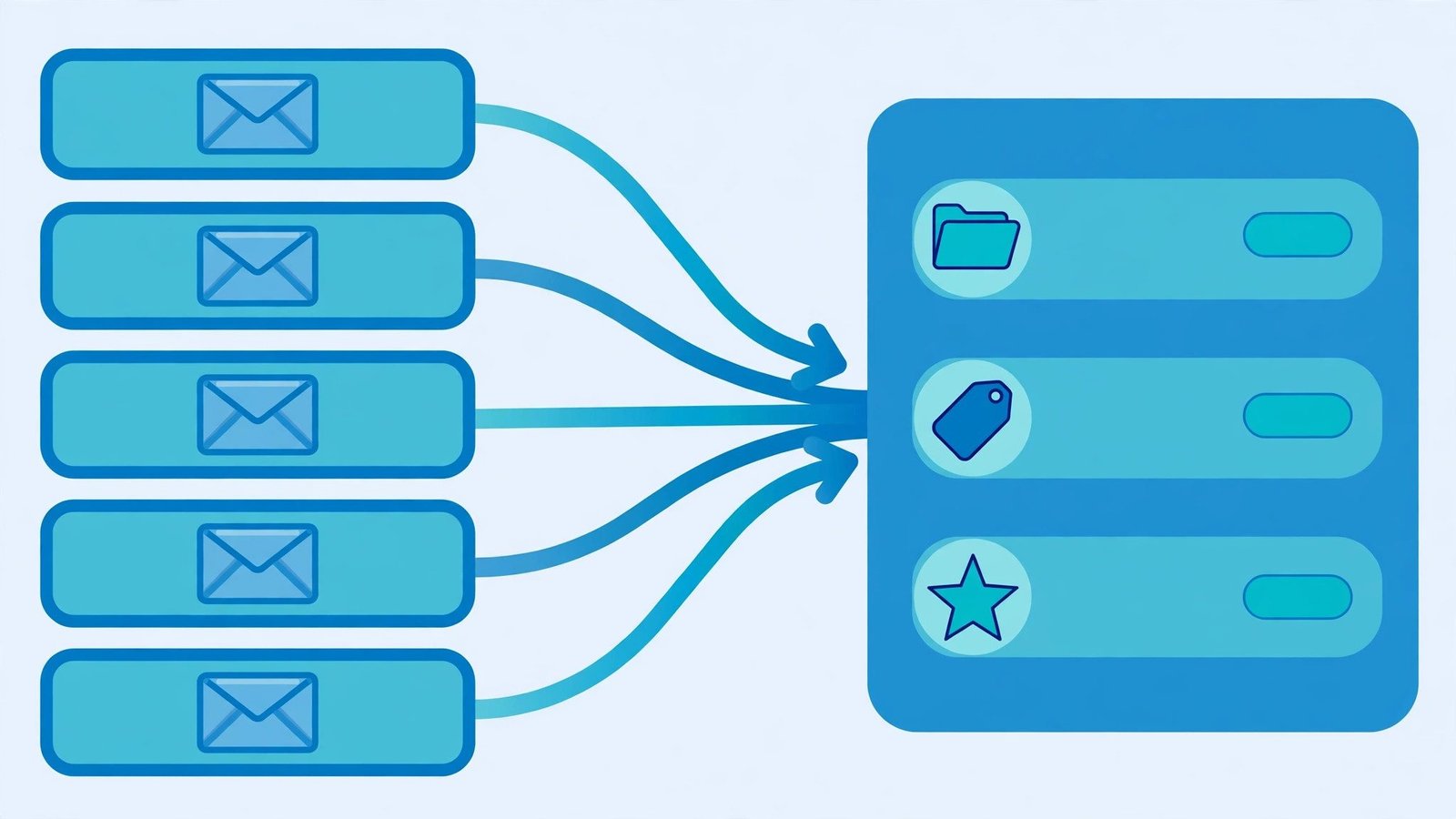
Each email also gets one consistent detail view. The Email Detail page shows a message the same way from draft through sent, with quick links to segments and contacts for that message. Reporting gets attention as well. The True Open filter settings of an account, which remove activity from link scanners, security previews, and privacy systems, are shown right where opens and clicks are read, so the numbers on screen reflect real human activity more closely. Admins control those True Open settings. Anyone who has wondered why open rates look inflated will find this section of the migration relevant, and our diagnostic guide on why an email open rate drops explains how scanner and privacy activity distorts engagement data.
Downloads expand in the new experience. A user can generate a PDF of the report, download the email preview as a PDF with or without the clickmap, or export the HTML and plain text of an email as a ZIP file. Rollup and drilldown CSV exports can include profile fields for Audience Center contacts, a detail that matters for teams reporting to sales or leadership.
The old routes into email work disappear behind redirects. The classic pages for sent, draft, scheduled, awaiting approval, and failed messages will redirect to the new experience. Test, A/B test, and RSS messages keep the current pages, reached through the new Email navigation link in the side bar. For accounts that already use the new experience, Act-On says the only change on October 28 is that the option to switch back goes away.
One more point deserves emphasis because it shapes the whole preparation plan. Admins do not have to wait for the deadline. An admin can turn on the new experience for an account today, from the classic drafts or sent messages listing pages, so the team can get familiar with the new layout before October 28. That early switch is the single most useful preparation step Act-On offers, and the preparation section below builds on it.
What Goes Away in the Legacy Composer
The migration is not only about a new home for messages. Several familiar actions end or move, and each one can break a routine if a team discovers the change mid-campaign. The table below compares the legacy composer world with the new Outbound Email experience, using the details Act-On lists in the official announcement.
| Feature or action | Legacy composer | New Outbound Email Experience |
|---|---|---|
| Create a brand new email | Possible in the legacy composer, including blank, upload code, and plain text only emails | New original emails start in the new composer; the legacy route for entirely new emails ends |
| Create a new landing page | Possible in the legacy landing page composer | New landing pages start in the new composer |
| Start from an existing legacy email or template | Standard way of working | Still possible; a user can start from existing legacy emails and templates, but cannot create entirely new ones in the legacy composers |
| Message listing pages | Separate classic pages for draft, scheduled, awaiting approval, failed, and sent messages | One listing for all standard messages under Email > Outbound Messages > Standard Messages; classic pages redirect to the new experience |
| Search for drafts and sent messages | Available in the top navigation bar | Removed from the top navigation bar; search happens in the Outbound Messages listing |
| Create a new message | Possible from the side navigation | Removed from the side navigation; use Email > Outbound Messages and click Create message |
| Hide Folders setting for drafts | Available as a per-user setting | Removed; folders can be pinned to the top of the list instead |
| Profile fields in report CSV exports | Available for marketing lists and contacts | Available for Audience Center contacts; for marketing lists, download the list and join it to the report in Excel |
| Switch back to the classic experience | Available for accounts already testing the new experience | Removed on October 28; the new experience becomes the sole experience |
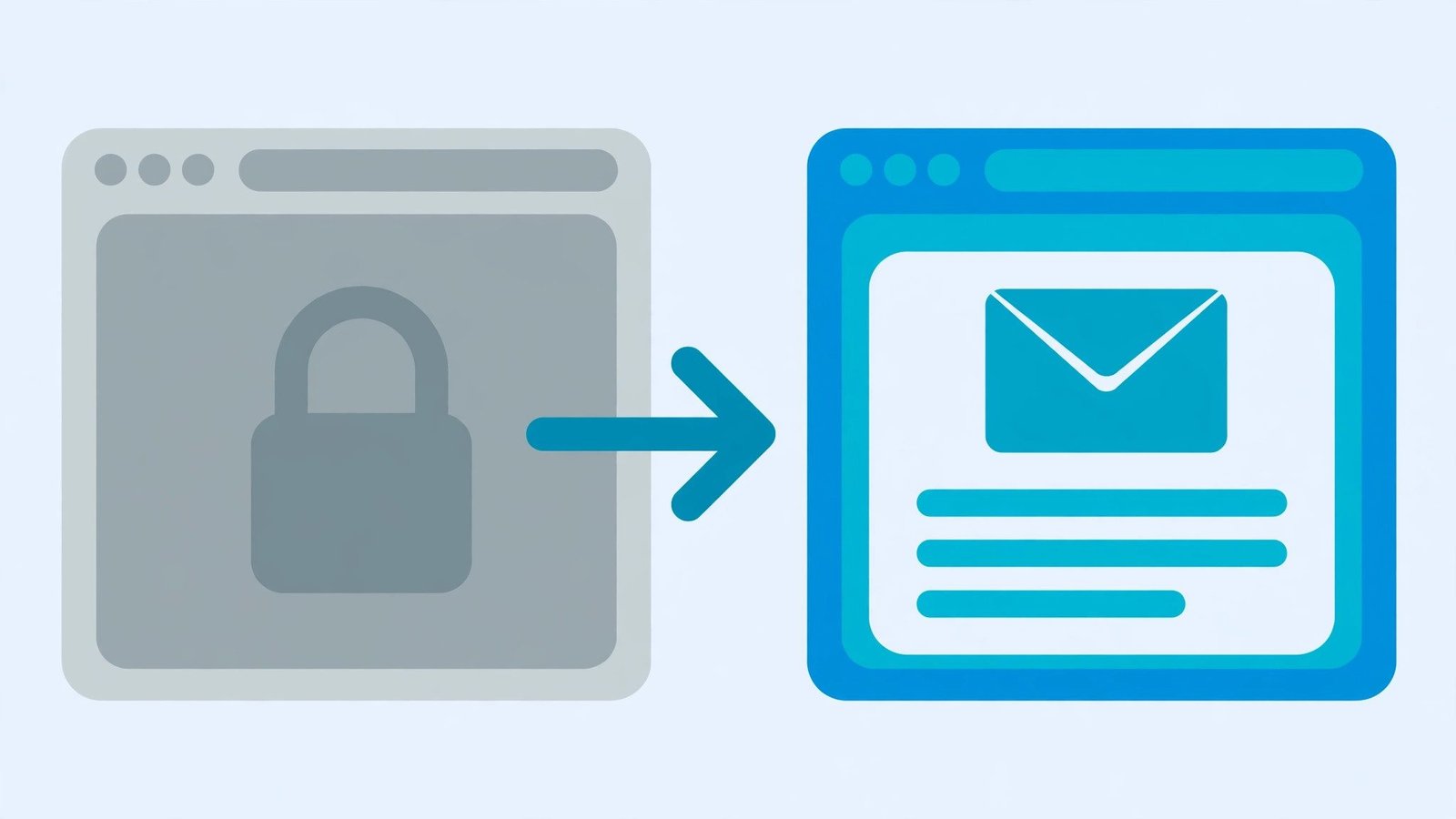
Two rows in that table deserve a second look. The first is template creation. The announcement says a user can still start from existing legacy emails and templates, just not create entirely new ones in the legacy composers. The FAQs add the harder edge: there is no plan for a conversion tool, so any legacy email or template that a team wants in the new composer has to be manually re-created. The second row to note is reporting. Marketing list profile fields leave the report CSVs. Profile fields remain available for Audience Center contacts, and Act-On suggests downloading the list and joining it to the report in Excel for marketing lists. A reporting routine built on those CSV fields needs a new workflow before the deadline, not after it.
Practical tip: treat the legacy composer like a closing office. Take an inventory of everything inside it, move the assets the team still needs, and assume that anything left behind will cost manual hours to rebuild after October 28.
What Stays the Same in the New Outbound Email Experience
A forced migration sounds total, but Act-On keeps several anchors in place. Knowing what survives the switch helps a team focus energy only where change is real.
Existing work is not deleted. Draft, scheduled, awaiting approval, failed, and sent messages all live in the new listing, and the classic pages redirect rather than vanish without a path. Test, A/B test, and RSS messages keep the current pages entirely. The FAQs also confirm that draft, template, and triggered emails can be kept as they are, and can still be edited with the legacy composer. The firm boundary is between composers: an email created in one composer cannot be edited in the other, which is why the manual rebuild question matters for templates a team wants to evolve inside the new composer.
Core building blocks carry over as well. Headers and footers are handled mostly the same as before, and any header or footer available in an account can be selected and placed. Old personalization syntax still works and converts to the new format when typed. The Survey and Poll block is included, personalization can be previewed, and a video content block accepts a YouTube or other URL with a preview thumbnail. The Email Composer also works across a wide surface of the platform: automated program emails, form confirmation emails, A/B testing, Act-On Anywhere for Gmail and Outlook, CRM users including NetSuite, RSS to email, webinars, campaigns, event triggered email, and API-driven sending, among others listed in the FAQs.
Hands-on controls survive the move as well. A user can still edit the HTML inside an HTML block, even though the HTML of a whole email cannot be opened for editing, and the creative can still be downloaded from Preview with the Download HTML option. Subject line personalization supports a fallback or default value, so a greeting or subject line does not break when a field is empty. Auto-save runs automatically in the new composer and cannot be switched off, which changes the drafting experience but protects work in progress; Undo and Redo cover experiments with layout. The composer also includes an AI Create content block for drafting copy and design help, and the Review and Send tab adds a structured final check before sending. None of these tools depend on the legacy composer, so skills the team builds during the preparation week remain useful after the deadline.
Some details change shape rather than disappear. Dynamic content works mostly as before, with one real difference: there is no else option, so a recipient who meets no condition sees no fallback content. The FAQs suggest two mutually exclusive IF conditions as a way to catch all recipients. Font sizing changes units, from point in the legacy composer to pixel in the new composer, with 16 pixels equal to 12 points as the reference example. Teams rebuilding templates should check text sizes during the rebuild rather than assume a one to one copy.
How to Prepare for the Act-On Email Composer Migration
Preparation divides into four steps. The order matters: an audit first, a rebuild of priority templates second, a team briefing third, and sending tests last. The timeline table after the steps compresses the plan into the days that remain before the deadline.
Step 1: Audit Every Legacy Template and Draft
Open the legacy areas of the account and list everything the team owns: saved templates, drafts in progress, triggered emails in automated programs, and form confirmation emails. For each item, record the owner, the campaign or program that uses it, and the date of last use. Anything unused for a long period can stay behind; the migration is a good moment to retire dead templates instead of rebuilding them. The audit output should be a short priority list, not a raw dump. Rank templates by business impact: the welcome series, the newsletter master template, event and webinar emails, and sales follow up templates usually sit at the top. This audit habit mirrors any disciplined platform change, and the same thinking applies when a team evaluates a switch of email service providers or reviews a platform decision with a marketing software selection process.
Step 2: Rebuild Priority Templates in the New Composer
Because no conversion tool exists, rebuilding is manual work and needs scheduled hours. Start with the top five to ten templates from the audit. As each template is rebuilt, use the native tools of the new composer instead of copying legacy habits: save reusable buttons and HTML blocks by placing each inside a single column row and saving the row, as the FAQs describe. Saved rows become the building blocks that speed up every later rebuild. Check the details that change between composers: font sizes move from points to pixels, dynamic content loses the else option, and image corners cannot be rounded in the new composer. A rebuilt template is only finished after a preview on desktop and mobile, because rows stack on mobile devices and the stacking order can be controlled.

Step 3: Brief the Team and Switch Early
The human side of the migration is a set of small habits. Creators need to know that new messages begin at Email > Outbound Messages with the Create message button, not from the side navigation. Anyone who searches drafts or sent mail from the top navigation bar needs the new habit of searching inside the Outbound Messages listing. Anyone who used the Hide Folders setting for drafts should pin key folders to the top of the list instead. Reporting owners need the Excel join workaround for marketing list profile fields, or a move of key contacts into Audience Center. The strongest briefing move is the early switch: an admin can turn on the new experience from the classic drafts or sent listing pages today, so the team learns the layout during a normal week instead of during a campaign crunch. A short internal note with the new navigation paths, plus one live walkthrough, covers most teams.
Step 4: Test Sending Before the Deadline
Do a full dress rehearsal on the rebuilt templates. Build a test message in the new composer, run it through the Review and Send tab, which Act-On says includes checks for sender details, subject, recipients, content, deliverability, spam check, and personalization. Send test copies to internal inboxes and confirm rendering, links, and personalization fallbacks. Note two behaviors from the FAQs while testing: a recipient added to a test send one by one is not saved to the contact list, and recipients do not carry over when a sent email is copied. Teams should also sanity check deliverability basics before any big send, since a platform change often coincides with list and sender reviews; the bulk sender requirements for Gmail, Yahoo and Microsoft are the current compliance baseline for high volume senders.
| Time window | Priority actions | Owner |
|---|---|---|
| October 21 to 22 | Complete the legacy template and draft audit; agree the priority rebuild list | Marketing operations lead |
| October 22 to 24 | Admin turns on the new experience early; rebuild the top priority templates; save reusable rows | Act-On admin and email designer |
| October 24 to 26 | Brief all creators on new navigation, search, and folder pinning; rebuild the second tier of templates | Team lead |
| October 26 to 27 | Run test sends from rebuilt templates; check Review and Send results, rendering, and personalization | Email marketer |
| October 27 | Confirm reporting workarounds for marketing list CSV fields; freeze non-essential legacy work | Reporting owner |
| October 28 | Migration day: all accounts on the new experience; create new messages only in the new composer | Whole team |
Practical tip: rebuild the template that earns money first, not the template that is easiest. If time runs out before October 28, a finished welcome series and newsletter master template protect revenue; a half finished archive of minor templates does not.
What to Do If Your Team Misses the Deadline

Missing the deadline is disruptive, but the published details from Act-On suggest the situation stays manageable. The switch itself is automatic: on October 28 the new experience becomes the sole experience for every account, with no action required from the team. Messages do not disappear. Draft, scheduled, awaiting approval, failed, and sent messages live in the new Outbound Messages listing, and the classic pages redirect there. Campaigns already scheduled keep a home, and test, A/B test, and RSS messages keep the current pages.
Work in the legacy format also remains usable as a base. The announcement confirms that a user can still start from existing legacy emails and templates, and the FAQs confirm that draft, template, and triggered emails can be kept as they are and edited with the legacy composer. The cost of missing the deadline is therefore not lost assets. The cost is friction: entirely new emails and landing pages must start in the new composer, every template the team wants in the new composer needs a manual rebuild under time pressure, and habits such as side navigation creation and top bar search stop working on day one.
A team in that position should triage in the same order as the preparation plan, compressed. First, rebuild the one or two templates tied to live revenue or active campaigns. Second, learn the three new navigation habits as a team: Create message in Outbound Messages, search in the listing, and pinned folders. Third, set up the reporting workaround for marketing list profile fields. Act-On also points users to Support when a workaround does not fit: the announcement advises contacting Support if the Excel join for marketing lists does not work for a team, and the FAQs note that teams can reach out to support for hands-on help with designing emails or using the Email Composer. For teams comparing how other platforms handle similar transitions, our roundup of the best email marketing platforms shows how composer and automation features differ across vendors.
Conclusion
The Act-On email composer migration has a fixed date, a clear scope, and one demanding requirement: manual work. On October 28, 2026, the new Outbound Email experience becomes the only experience, with one listing for standard messages, cleaner engagement numbers through True Open settings, and more download options. In exchange, the legacy composers lose new original emails and landing pages, top bar search for drafts and sent mail ends, side navigation message creation ends, and the switch back option disappears. No conversion tool is planned, so the value of the coming days sits in the audit, the priority rebuild, the team briefing, and the test sends. A team that uses the early switch option and finishes those four steps will treat October 28 as a normal sending day.
FAQs
When does the Act-On email composer migration happen?
The migration happens on Wednesday, October 28, 2026. Act-On states that the new Outbound Email experience is scheduled to become the sole experience for all accounts on that date. After that day, the option to switch back to the classic experience goes away.
Can Act-On convert legacy emails and templates to the new composer automatically?
No. The Email Composer FAQs state that there is no plan for a conversion tool. Legacy emails and templates need to be manually re-created in the new Email Composer, and an email created in one composer cannot be edited in the other composer.
What happens to drafts, scheduled messages, and sent emails after October 28?
They move into one shared listing in the new experience. Draft, scheduled, awaiting approval, failed, and sent messages live together under Email > Outbound Messages > Standard Messages, with the same folders, tags, and favorites across all of them. The classic listing pages redirect to the new experience.
Can a team switch back to the legacy composer after the migration?
No. Accounts that already use the new experience keep it, and Act-On states that the only change for those accounts on October 28 is that the option to switch back goes away. The new Outbound Email experience becomes the sole experience for all accounts.
Can existing legacy emails still be edited after the switch?
Yes, within limits. The FAQs state that draft, template, and triggered emails can be kept as they are and can still be edited with the legacy composer, and the announcement confirms that a user can still start from existing legacy emails and templates. Entirely new emails and landing pages, however, must start in the new composers.
Where do message creation and search move in the new Outbound Email experience?
New messages start at Email > Outbound Messages with the Create message button, because creating a message from the side navigation ends. Draft and sent search also leaves the top navigation bar, so searching happens inside the Outbound Messages listing instead.